








Filters
Printer Repair in Yerevan, Armenia and Other Regions
Find printer repair in Yerevan for home, office, school, retail, and business equipment on Turn.am. This category brings together independent specialists and service centers offering diagnostics, printer maintenance, cartridge refilling, cleaning, and repair for laser, inkjet, and multifunction devices. You can review service descriptions, compare the type of work offered, and contact a provider directly to discuss your printer model and the problem.
A printer that stops printing can interrupt document preparation, invoices, reports, study materials, labels, and daily office tasks. Whether the issue is faded output, paper jams, streaks on the page, a cartridge error, or a computer connection problem, relevant providers can help identify the likely cause and explain the available repair options. Turn.am is a marketplace, so the repair work is performed by the provider you choose, not by the platform.
What printer repair and maintenance services can include
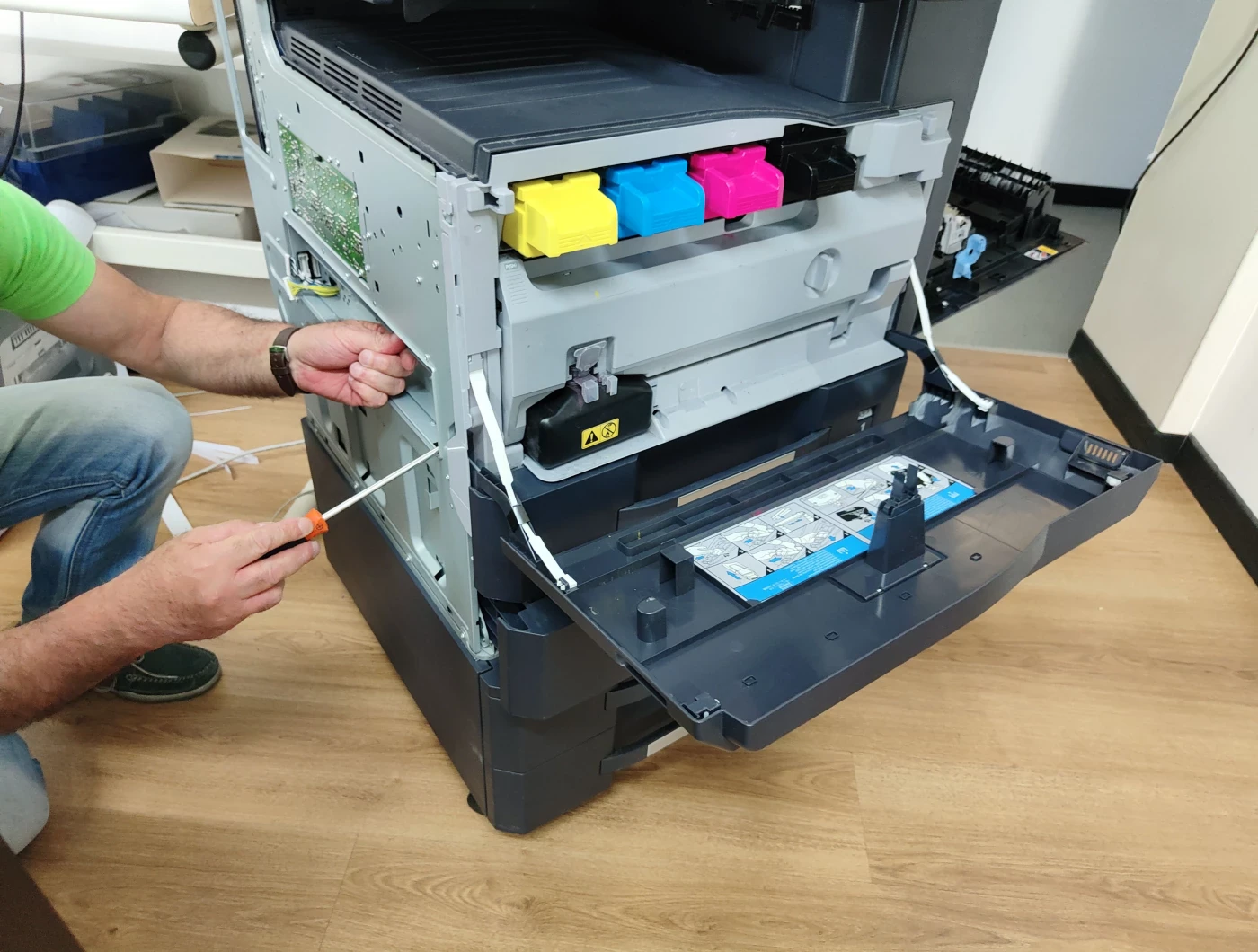
Printer malfunctions can involve consumables, mechanical components, software, network settings, or internal electronics. A technician may begin with diagnostics to determine whether the problem is related to the cartridge, toner or ink, paper feed mechanism, printhead, driver, cable connection, or another part of the device. Giving a clear description of the symptoms can make this process more focused.
Cartridge refilling and restoration are common requests for both home and office printers. Laser printer cartridges may need toner refilling when pages become light or incomplete, while inkjet cartridges can run out of ink or stop being recognized by the device. Depending on the cartridge condition, a provider may also inspect components such as the drum, wiper blade, or magnetic roller. Refilling is not the answer to every print defect, since repeated spots, black lines, powder leakage, or poor toner transfer may point to worn cartridge parts or a printer issue.
Laser printer repair often concerns toner cartridges, drums, fusers, rollers, and paper transport components. Typical signs include pale pages, marks that repeat at regular intervals, loose toner on paper, unusual noise, several sheets being pulled at once, or sheets getting stuck inside the machine. For printers used heavily for contracts, accounting documents, forms, or other high-volume printing, maintenance may include internal cleaning and inspection of parts affected by regular use.
Inkjet printer repair can address clogged printheads, dried ink, missing colors, striped images, blurred text, and incorrect color output. When an inkjet printer has been unused for an extended period, ink can dry in the printhead or ink path. Providers may assess whether printhead cleaning, ink system cleaning, cartridge inspection, or another technical procedure is appropriate. For devices with a continuous ink supply system, tubes, ink flow, and air in the system can also affect printing.
Paper jam removal and paper feed repair are relevant when paper does not load, enters crookedly, feeds multiple sheets, or repeatedly jams. The cause may be dirty or worn rollers, unsuitable paper, dust, torn paper left inside, a foreign object, or an internal mechanism problem. Simply removing a jammed sheet may restore printing temporarily, but recurring jams usually warrant a closer inspection of the feed system.
The category can also cover printers that do not power on, show an error code, or are not recognized by a computer. In these cases, the issue may involve the power cable, adapter, internal power supply, USB connection, drivers, operating system settings, Wi-Fi, or network configuration. For shared office printers, a provider can assess why one or several computers cannot send documents to the device.
Multifunction printer repair is useful when a combined printer, scanner, and copier has a fault in one or more functions. A device may print normally but fail to scan, produce poor copies, show lines in scanned documents, or have an automatic document feeder that does not pull pages correctly. Because these functions share one machine but use different components, it is useful to describe exactly which operation is affected.
How to choose a printer repair provider
Start by checking whether a provider works with your type of device. Laser printers, inkjet models, multifunction units, photocopiers, and plotters can require different parts, consumables, and troubleshooting approaches. It is also helpful to ask whether the offered work is limited to cartridge refilling or includes cleaning, diagnostics, restoration, mechanical repair, and replacement of worn components when necessary.
Before contacting a specialist, prepare the printer brand and exact model, the cartridge number if applicable, and a short account of when the issue started. For print-quality defects, a photo or scan of a printed page can show whether there are horizontal lines, blank areas, repeated marks, color shifts, or faded text. If an error appears on the printer display or computer screen, note the message or take a photo. This information helps a provider assess the situation before examining the device.
For connection issues, explain whether the printer uses USB, Wi-Fi, or a network connection and whether the problem affects one computer or several. For paper feed issues, mention whether the device fails to pick up paper, pulls too many sheets, or jams at a particular stage. If the printer has been idle for a long time, especially an inkjet model, that detail may be relevant to dried ink or printhead clogging.
Office users may want to compare providers based on their ability to handle regular printer maintenance as well as a single repair. Where multiple printers or multifunction devices are used, it can be practical to discuss routine cleaning, cartridge management, roller inspection, network setup, and how equipment can be serviced with minimal disruption to the working day. Clarify whether the device should be brought to a service center or whether the provider can discuss other service arrangements directly with you.
Printer repair availability in Yerevan and across Armenia
Yerevan is the main place where many users search for printer repair, cartridge refilling, and office printer maintenance. Service listings may also be relevant for users in other parts of Armenia, including cities such as Gyumri, Vanadzor, Vagharshapat, Hrazdan, Abovyan, and Kapan. Availability, service format, supported printer models, and the option to handle a device outside Yerevan depend on the individual provider, so confirm the details directly before arranging work.
When contacting a provider, state whether the printer is for personal use, a small office, a school, a shop, or another workplace. This gives useful context about the device's workload and the importance of scanning, copying, network printing, or consistent document output. You can then compare suitable offers on Turn.am and contact the provider whose service description matches your printer issue.
Find the right printer repair service
Browse printer repair listings on Turn.am, compare the services offered, and contact providers directly with your model, symptoms, and any error messages. Clear details about the device and the fault can help you find an appropriate option for repair, cleaning, maintenance, or cartridge refilling.